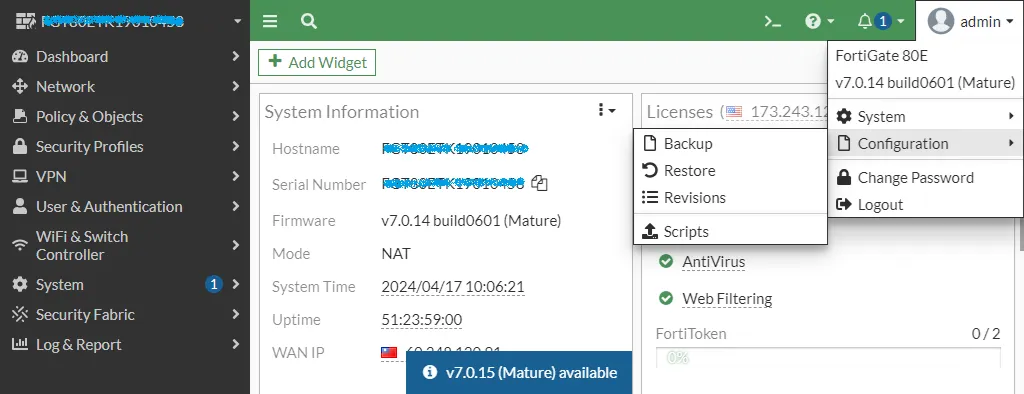
我們在做重大變更前可以透過 FortiGate 的右上角 Configuration 的 Backup 選項來下載防火牆的設定或者備份到 USB 裝置,今天就來教大家如何設定自動排程來進行每日的組態備份到 SFTP 或者 USB 裝置。
先到 Security Fabric 的 Automation,新增 Action。
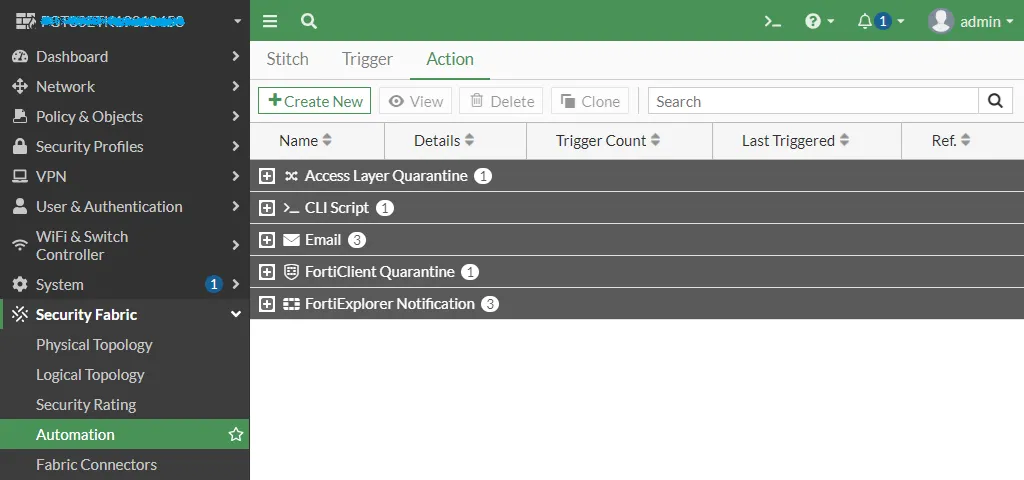
選擇 CLI Script
- NAME:Backup Config
- Minimum interval:0
- Script:execute backup config sftp backup.conf <Server_IP> <Username> <Password>
- Administrator profile:super_admin
我們使用 Azure 儲存體帳號來演示,不需要真的建立一台 SFTP 伺服器。
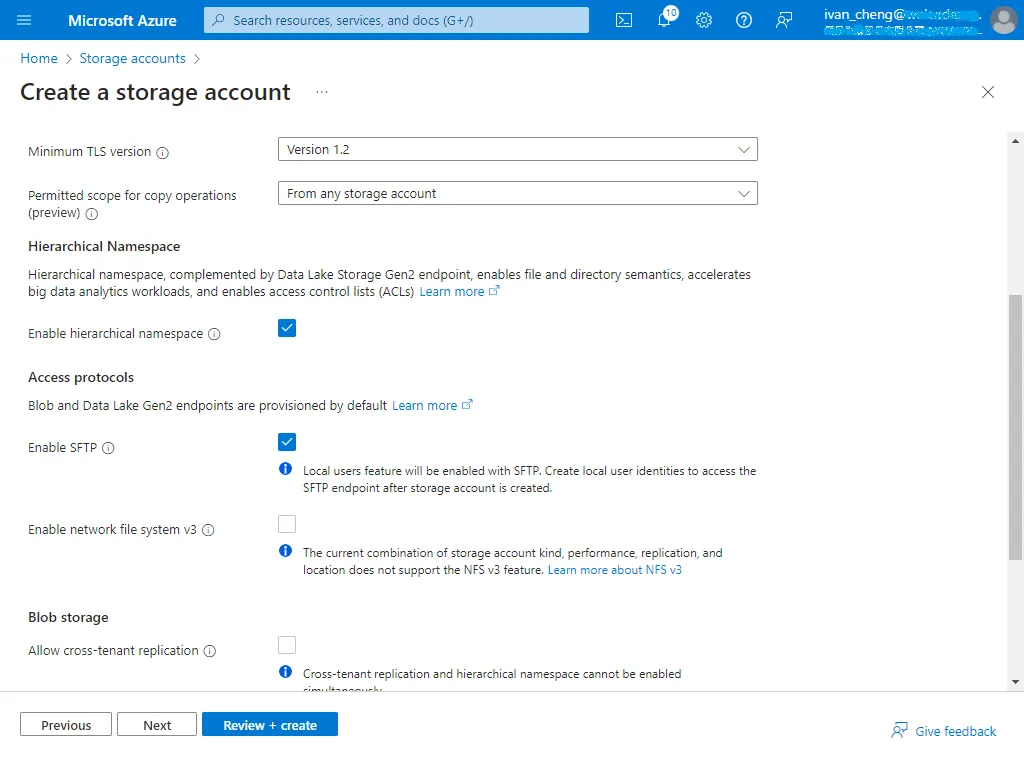
在 Advanced 頁面勾選 Enable hierarchical namespace 與 Enable SFTP
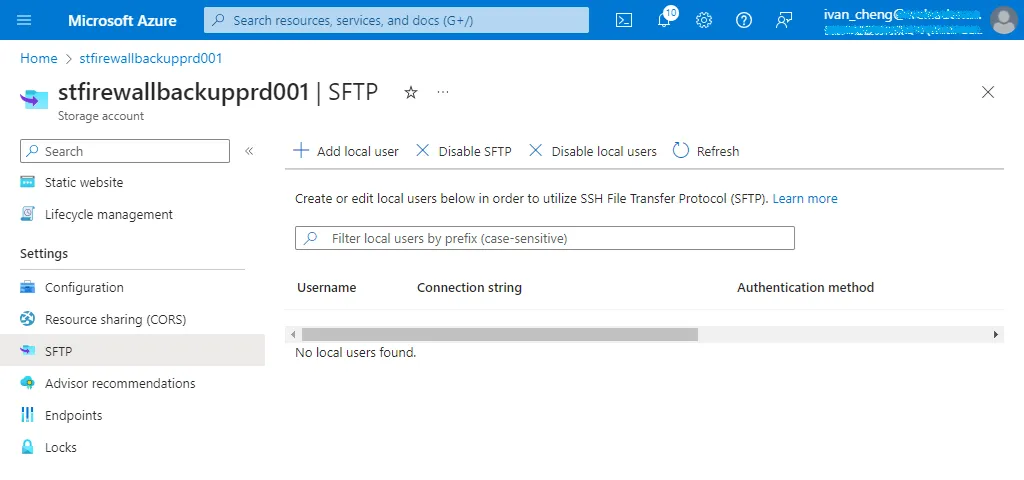
接著我們到 Settings 的 SFTP 點選 Add Local User。
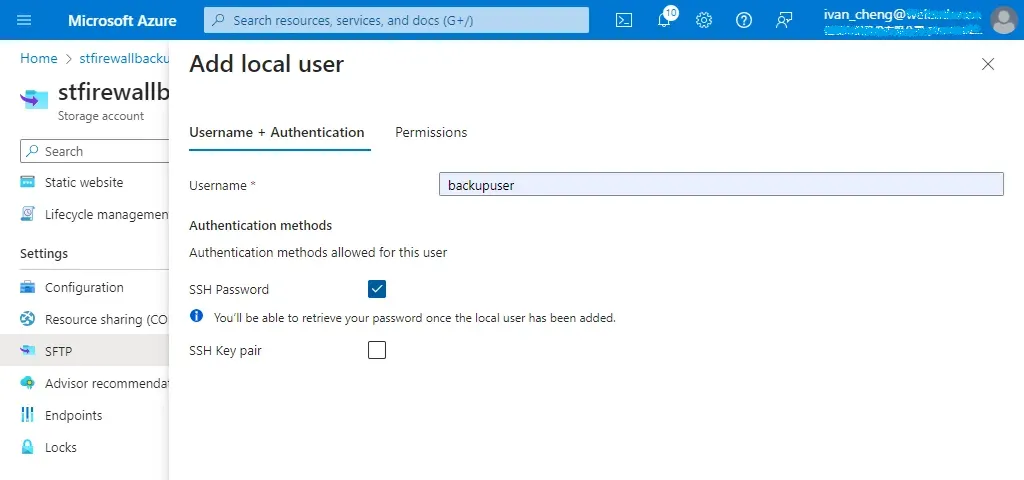
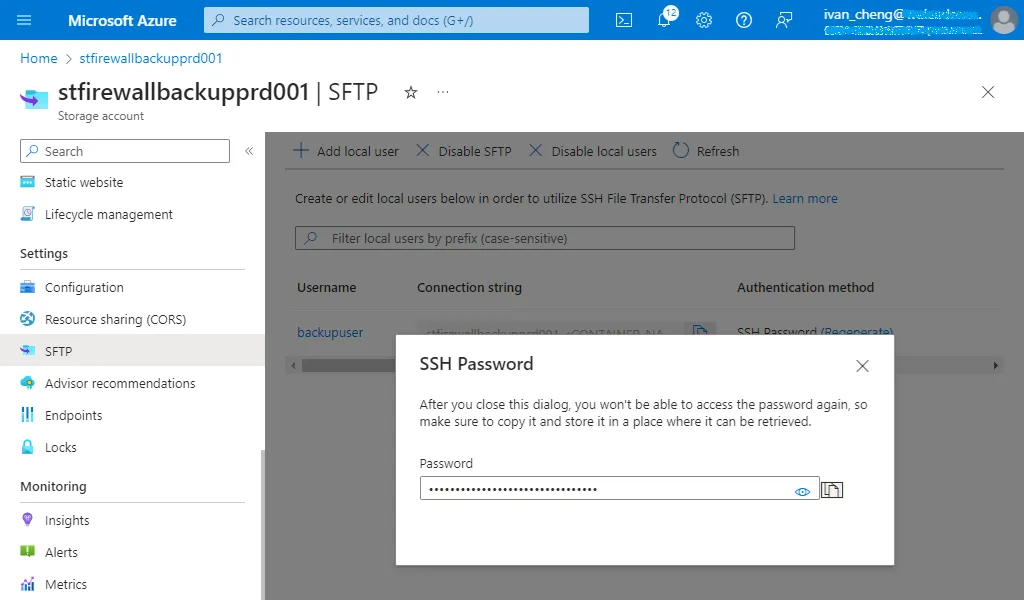
新增 User 並勾選 SSH Password
在 Permissions 新增一個 backup 容器並給予適當存取權限,點選 Add。
Home directory:backup
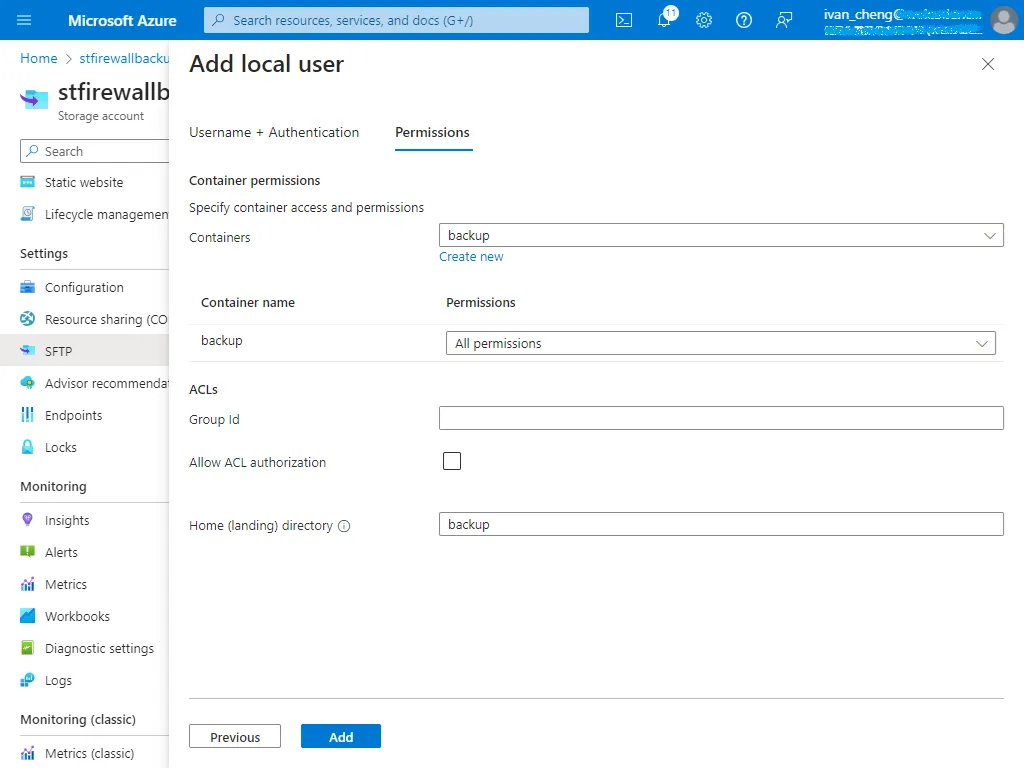
記得將 SSH 密碼記下來
在 CLI Console 驗證備份指令是否正確
execute backup config sftp backup.conf <storage_account>.blob.core.windows.net <Storage_Account>.<Local_User> <SSH_Password>

沒問題就把指令加入 Action
我們把 %%devname%% 與 %%date%% 這兩個參數來當作檔案名稱,值得注意的是在 CLI Console 模式下將不生效,只有透過 GUI 觸發才會正常顯示。
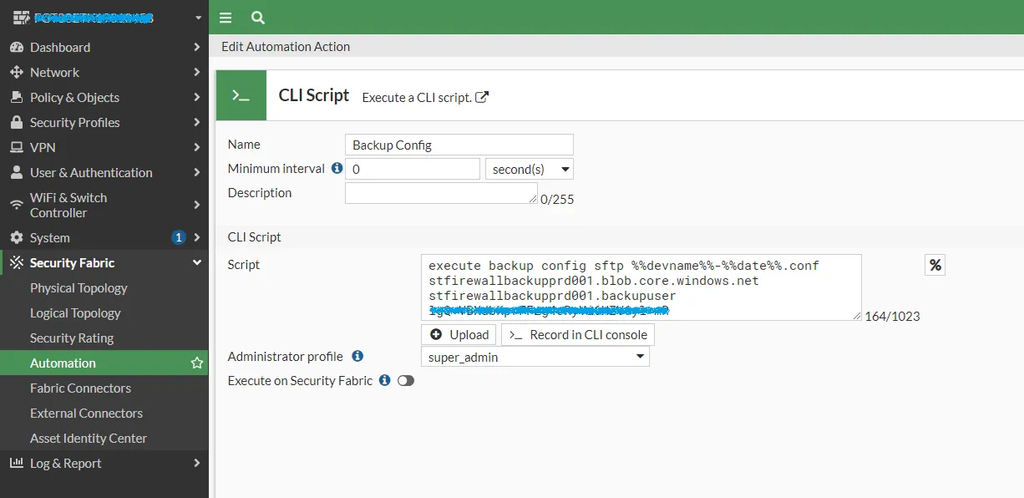
或者透過下 CLI 建立
config system automation-action
    edit "Backup Config"
        set action-type cli-script
        set minimum-interval 0
        set delay 0
        set required enable
        set script "execute backup config sftp %%devname%%-%%date%%.conf <storage_account>.blob.core.windows.net <Storage_Account>.<Local_User> <SSH_Password>"
        set accprofile "super_admin"
    next
end
新增一個 Trigger,選擇 Schedule。
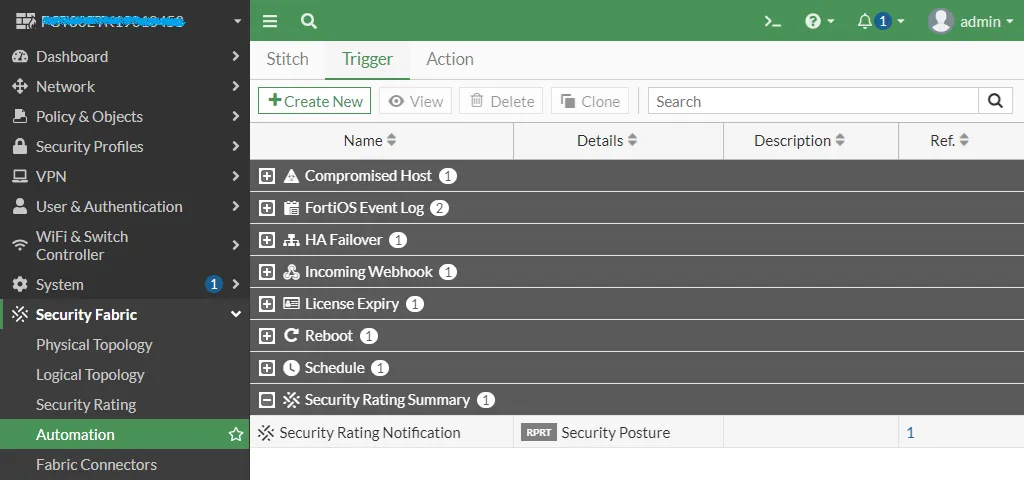
設定每天執行一次
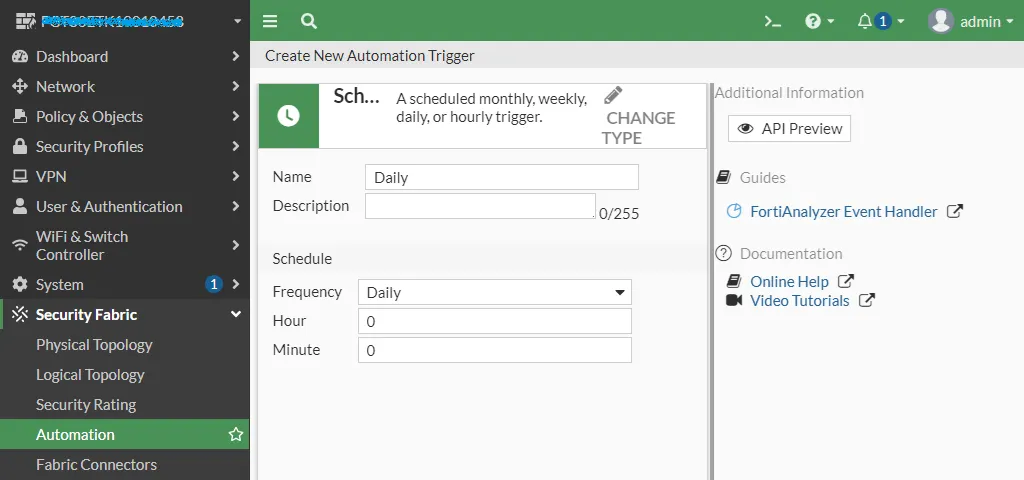
或者透過下 CLI 建立
config system automation-trigger
    edit "Daily"
        set trigger-type scheduled
        set trigger-frequency daily
        set trigger-hour 0
        set trigger-minute 0
    next
end
新增一個 Stitch
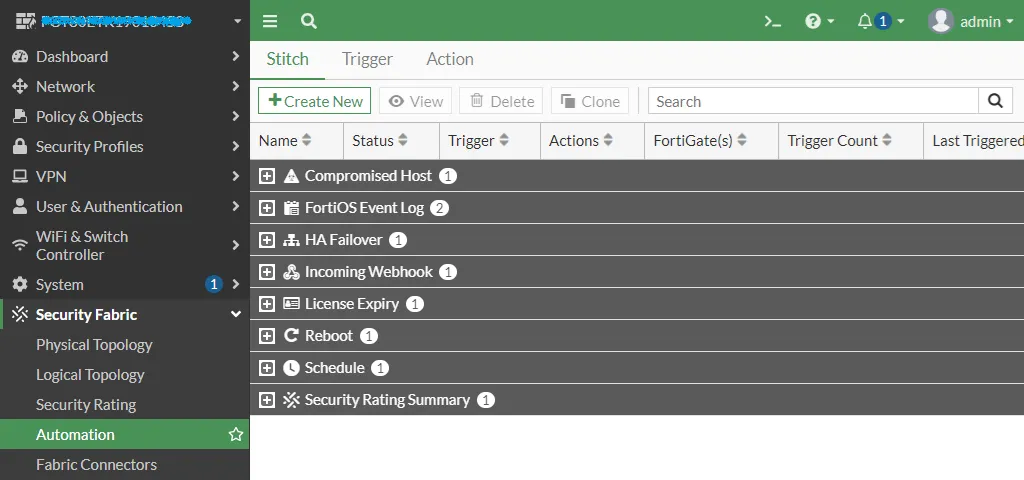
把 Trigger 與 Action 加進來就完成了
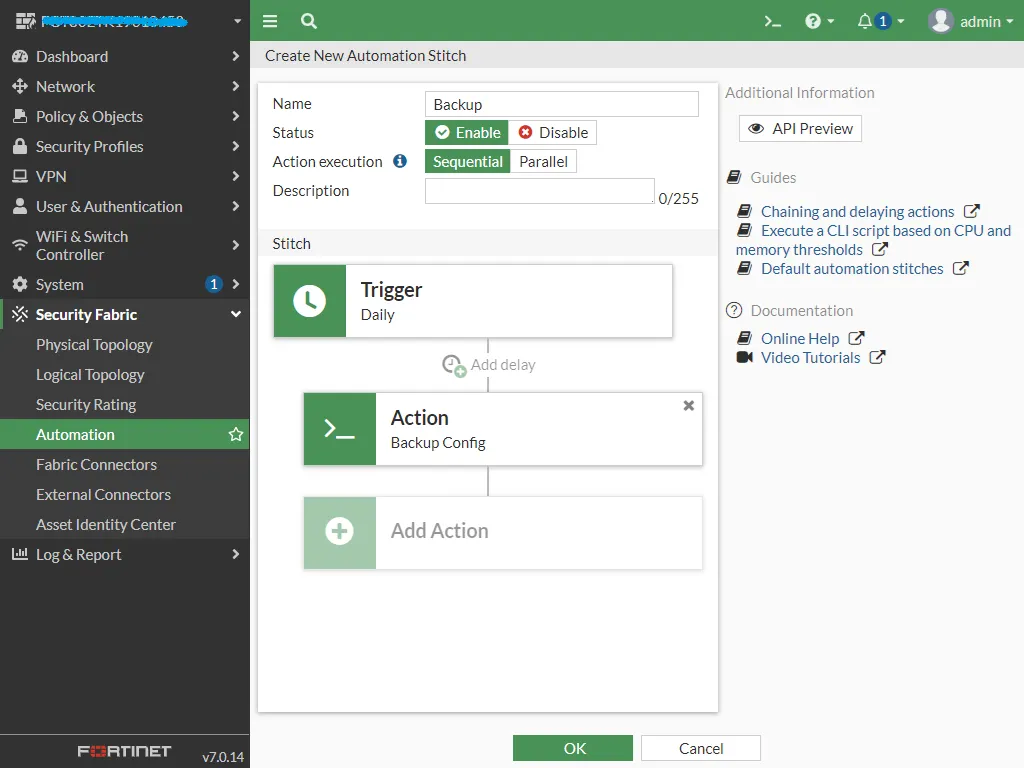
或者透過下 CLI 建立
config system automation-stitch
    edit "Backup"
        set status enable
        set trigger "Daily"
        set action "Backup Config"
    next
end
可以右鍵 Test Automation Stitch 進行測試
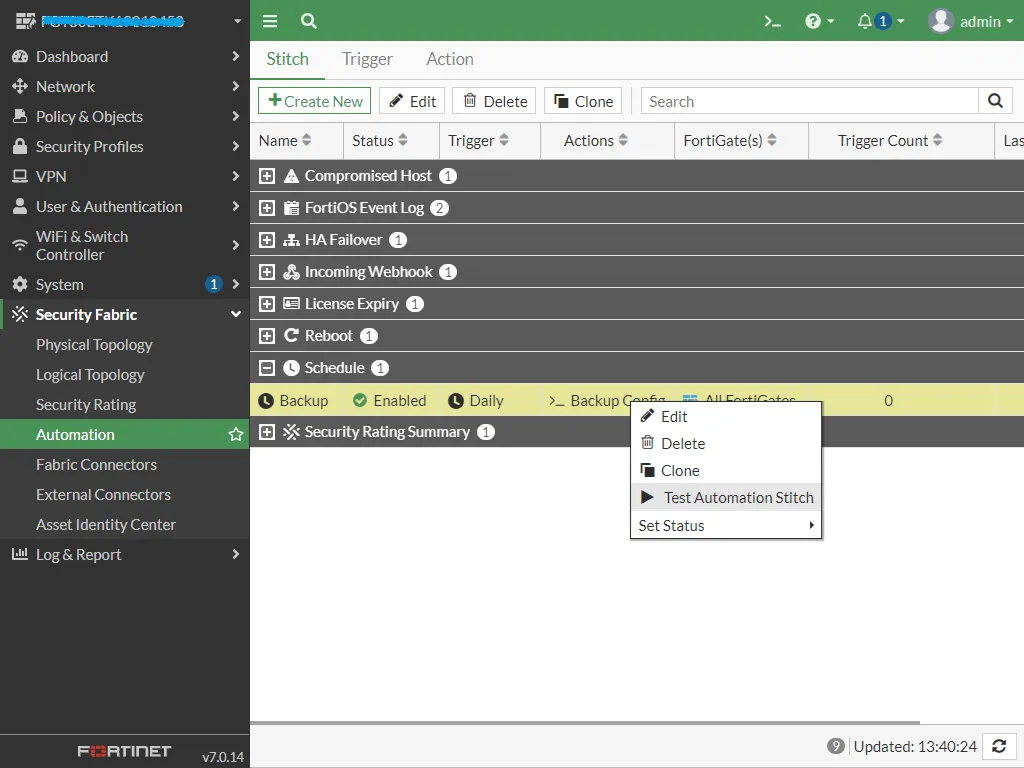
備份檔案已經成功上傳至 Azure 儲存體帳號了
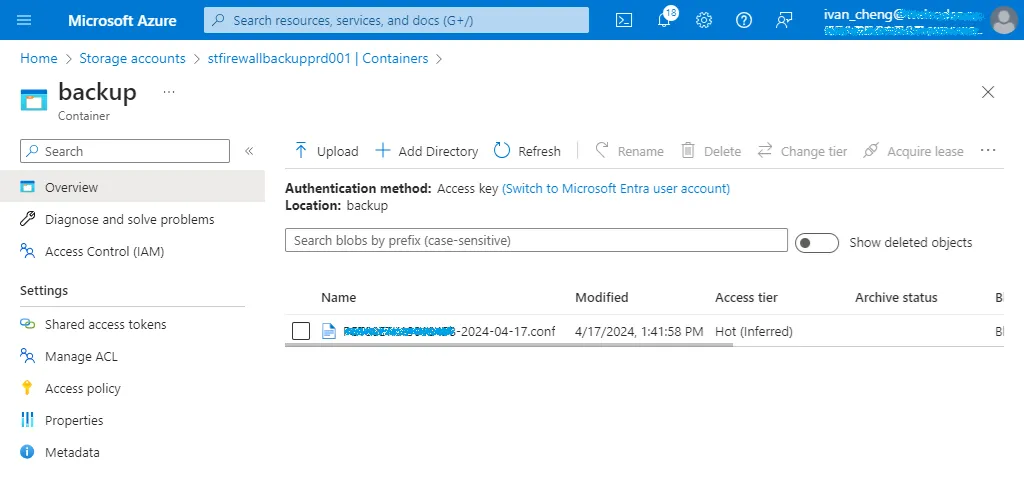
再到儲存體帳號的 Lifecycle Management 設定備份檔案保留天數
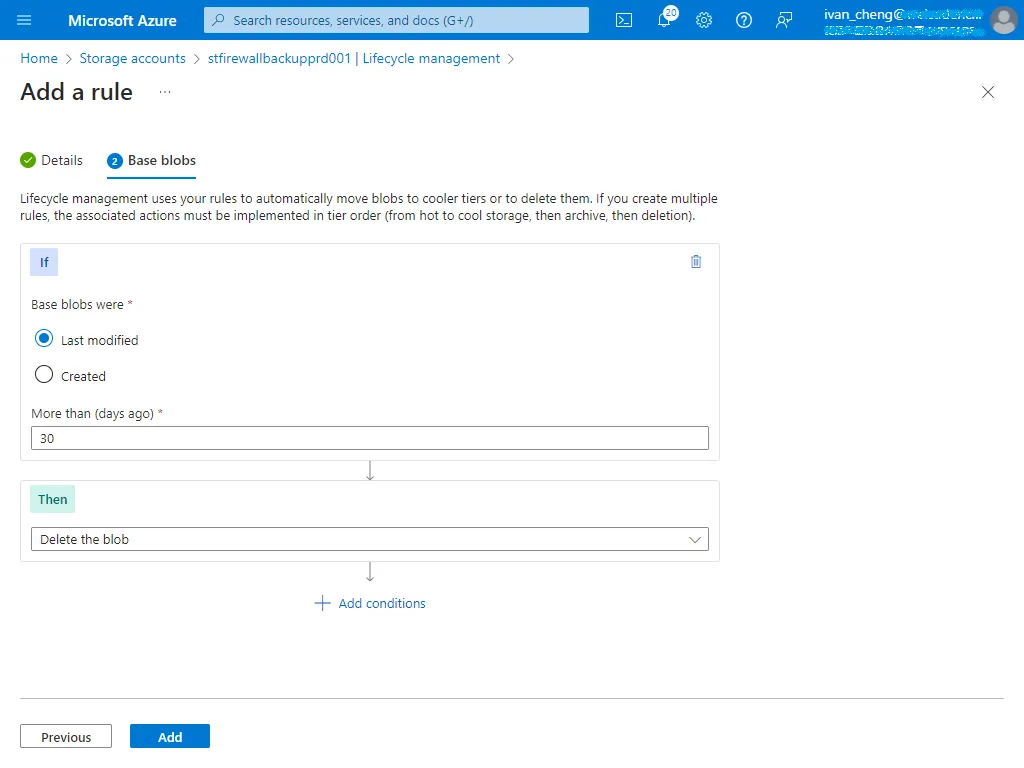
想要備份到 USB 的話,只要把備份指令更改如下即可。
execute backup config usb %%devname%%-%%date%%.conf今天的分享就到這邊,感謝收看。